Near the pointer
Call the dock where you are working instead of travelling to the Dock, menu bar or another launcher.
Native macOS action launcher
Open a compact dock under the pointer, unfold nested tools, or pin several independent docks to the Mac Desktops where they belong.
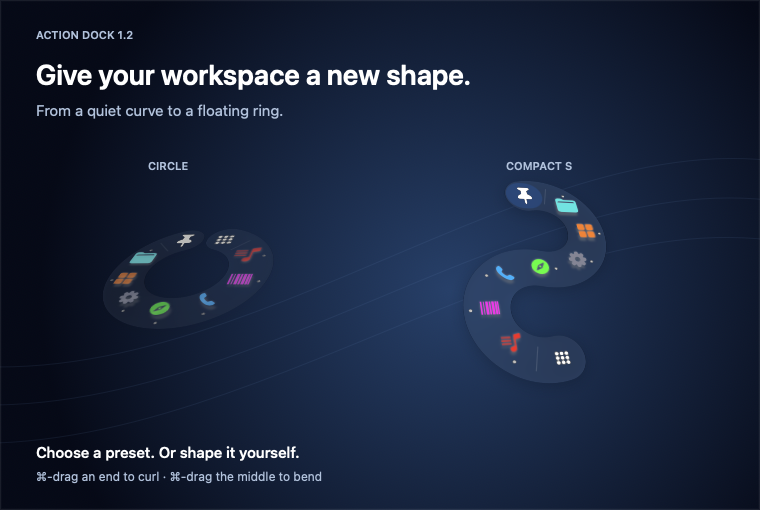
What Action Dock is for
Action Dock turns shortcuts, applications, files, links, media controls and multi-step automations into a menu that appears near your hand. Use one temporary dock or keep several permanent control surfaces.
Call the dock where you are working instead of travelling to the Dock, menu bar or another launcher.
Show a Global Menu, an app-specific menu, or a menu assigned to a particular macOS Desktop.
Pin independent docks. Their position, orientation, context and owning Desktop survive a restart.
Start here
Action Dock is currently built from source. The order matters: sign the app, place it in Applications, and only then grant Accessibility access to that installed copy.
git clone https://github.com/Smoep/action-dock.git
cd action-dock
open action_dock.xcodeproj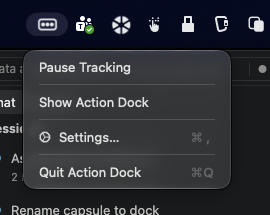
Build your first useful dock
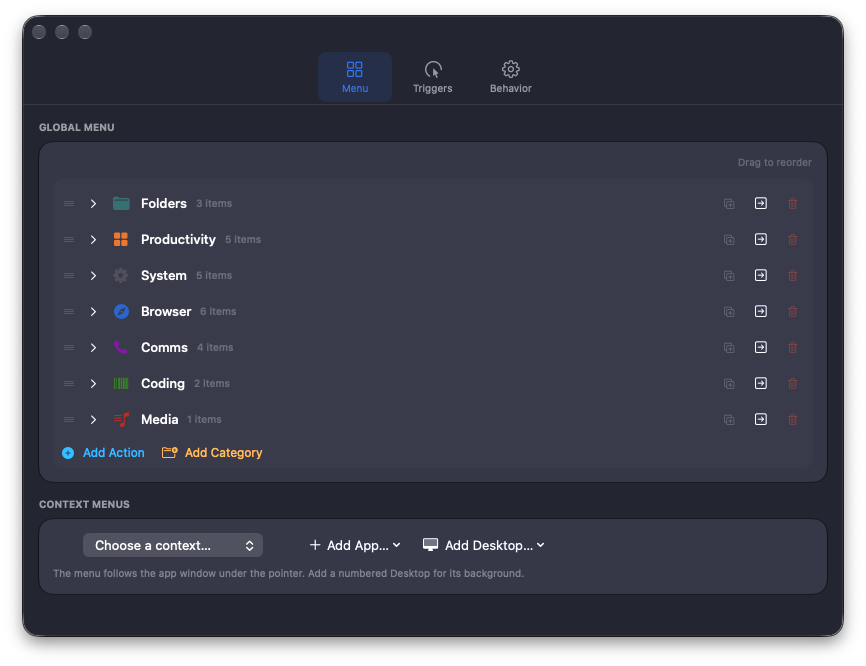
Start with the Global Menu. A small working menu is easier to learn than a large menu copied from someone else.
Keep names short. The dock always shows the icon; the name appears as a nearby label or submenu row.
 1234
1234A sensible first menu
One category, two obvious app actions and one shortcut are enough to test navigation.
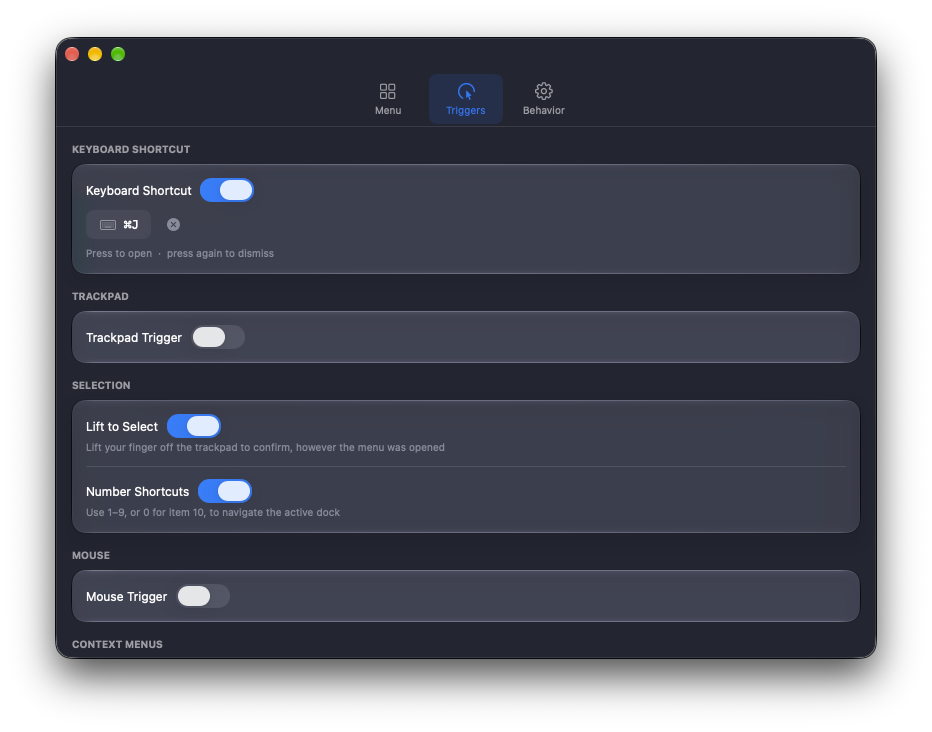
Use one trigger until it feels predictable. You can enable several later.
 123
123Everyday use
The root dock stays compact. A category opens a labelled submenu beside it; another category can open a further level.
Use your trigger or choose Show Action Dock. It appears near the pointer without activating itself.
Hover a category. Its chevron points toward the side where the submenu will open.
Click a leaf action, release the activating gesture, or press its number.
Move inward, use the Back arrow, or press Esc to dismiss an active temporary dock.
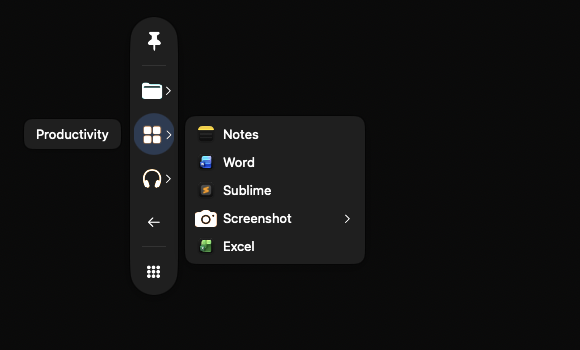
A chevron means the item unfolds. Hover is enough; no extra click is required.
A labelled row without a chevron executes immediately when selected.
On an app or Desktop context, Back returns that dock to the Global Menu.
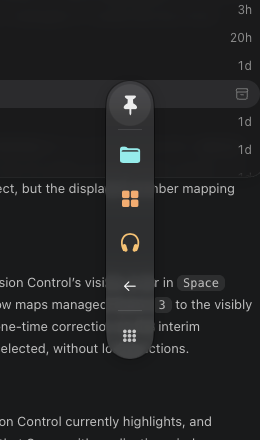
Drag the dotted grip. The rest of the dock remains dedicated to actions.
Power features
Pinned docks are independent. Each one owns its placement, orientation, selected context and macOS Desktop.
Clicking a filled pin unpins that dock. It becomes temporary again; it does not delete your menu.
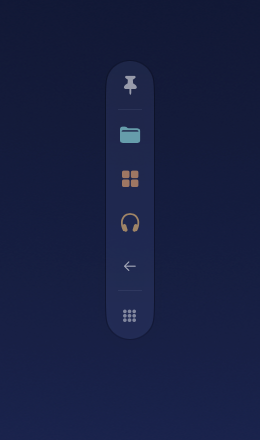
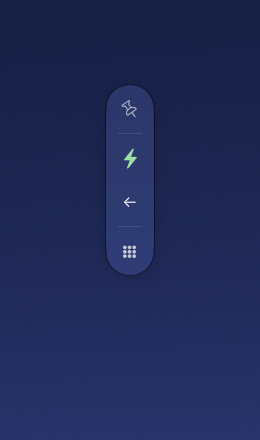
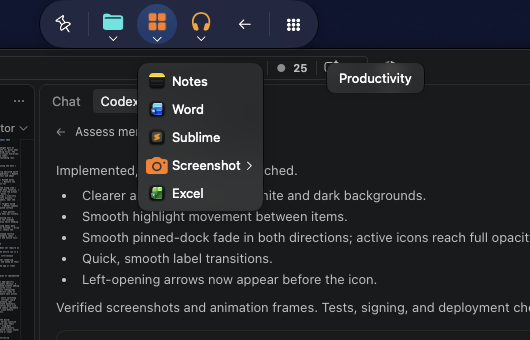
Labels stay level. Child menus are placed inside the usable screen even when the root dock occupies the menu-bar strip.
A pinned dock belongs to the macOS Desktop where it was created. It stays behind when you leave that Space and returns when you come back.
Context menus
Contexts change the action tree, not the dock itself. Select one automatically by opening over its app or Desktop, or choose it explicitly from a dock’s right-click menu.
The dependable default, available anywhere for universal shortcuts.
Appears when Action Dock opens over the configured application’s window.
Appears over the background of the assigned numbered macOS Desktop.
Action types
Record a key combination and send it to the active app.
Launch or focus a chosen macOS application.
Open a chosen local folder in Finder.
Open a chosen file in its default application.
Open web links, mail links and application URL schemes.
Run a named workflow from Apple’s Shortcuts app.
Run a command in the background. Only use commands you trust.
Play, pause, skip, change volume or mute.
Place the focused window into a half or quarter, maximize it, or center it.
Every action can chain ordered steps with a configurable delay between them.
Settings map
Build Global, app and Desktop trees. Add, nest, duplicate, colour and reorder actions.
Configure keyboard, trackpad and mouse activation, release selection, number navigation and context switching.
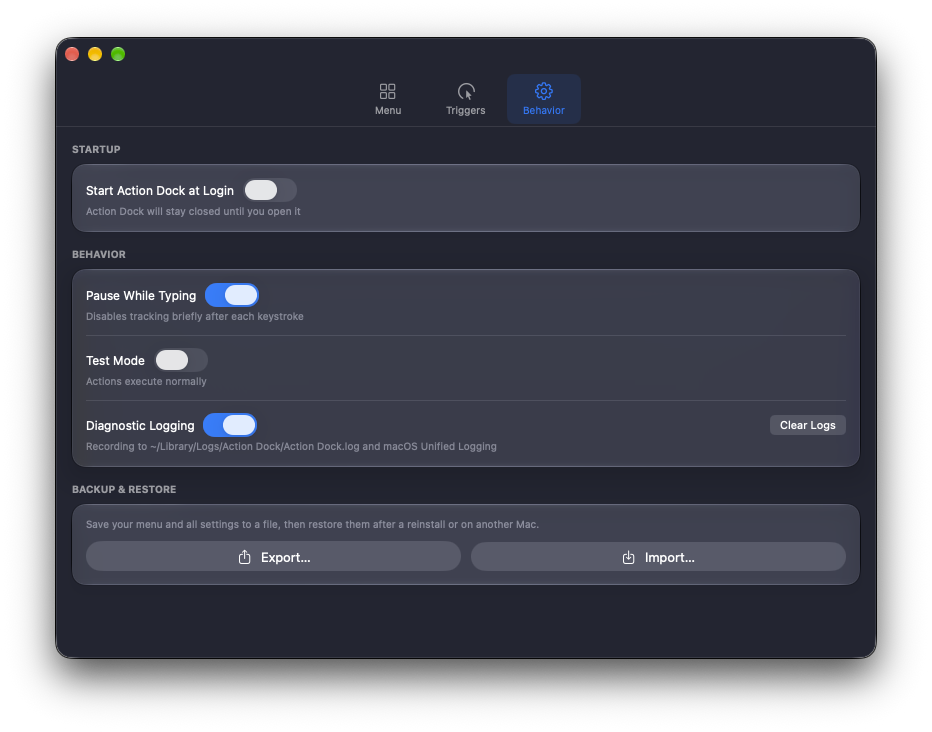
Start at login, pause while typing, practise in Test Mode, collect diagnostics, and export or import a backup.
Troubleshooting
Confirm Accessibility is enabled for the copy in Applications, then quit and reopen Action Dock. Also check that tracking is not paused.
Turn off Test Mode. For keyboard actions, make sure Accessibility is still granted and the intended target app remains active.
Visit the Desktop where it was pinned. Pinned docks intentionally remain with their owning Space.
Open Settings, select that context and add at least one action. Empty contexts deliberately fall back to Global Menu.
Before a major reorganisation
Open Settings → Behavior → Backup & Restore. Keep a dated export once the dock layout has become muscle memory.